Backend Settings
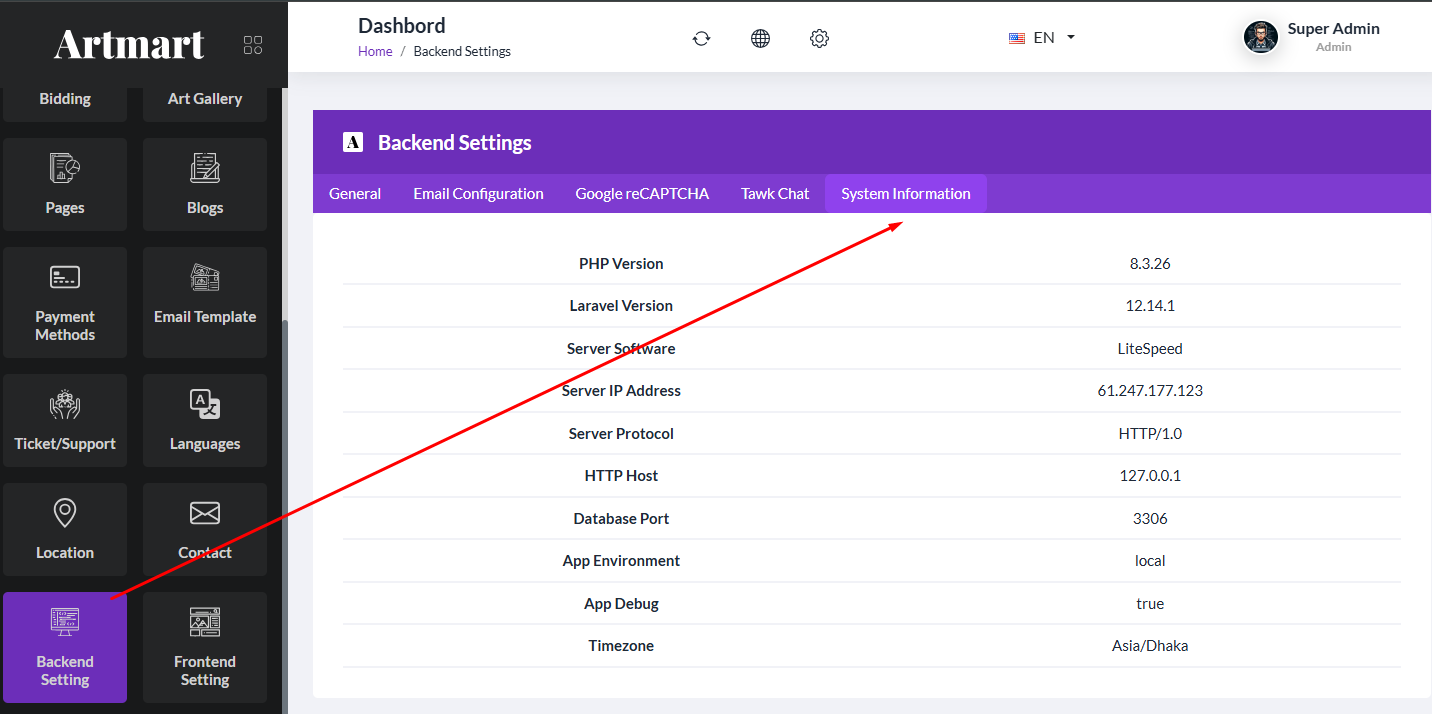
Go to Admin -> Backend Setting
- General Setting
- Email Configuration
- Google reCAPTCHA
- Tawk Chat
- System Information
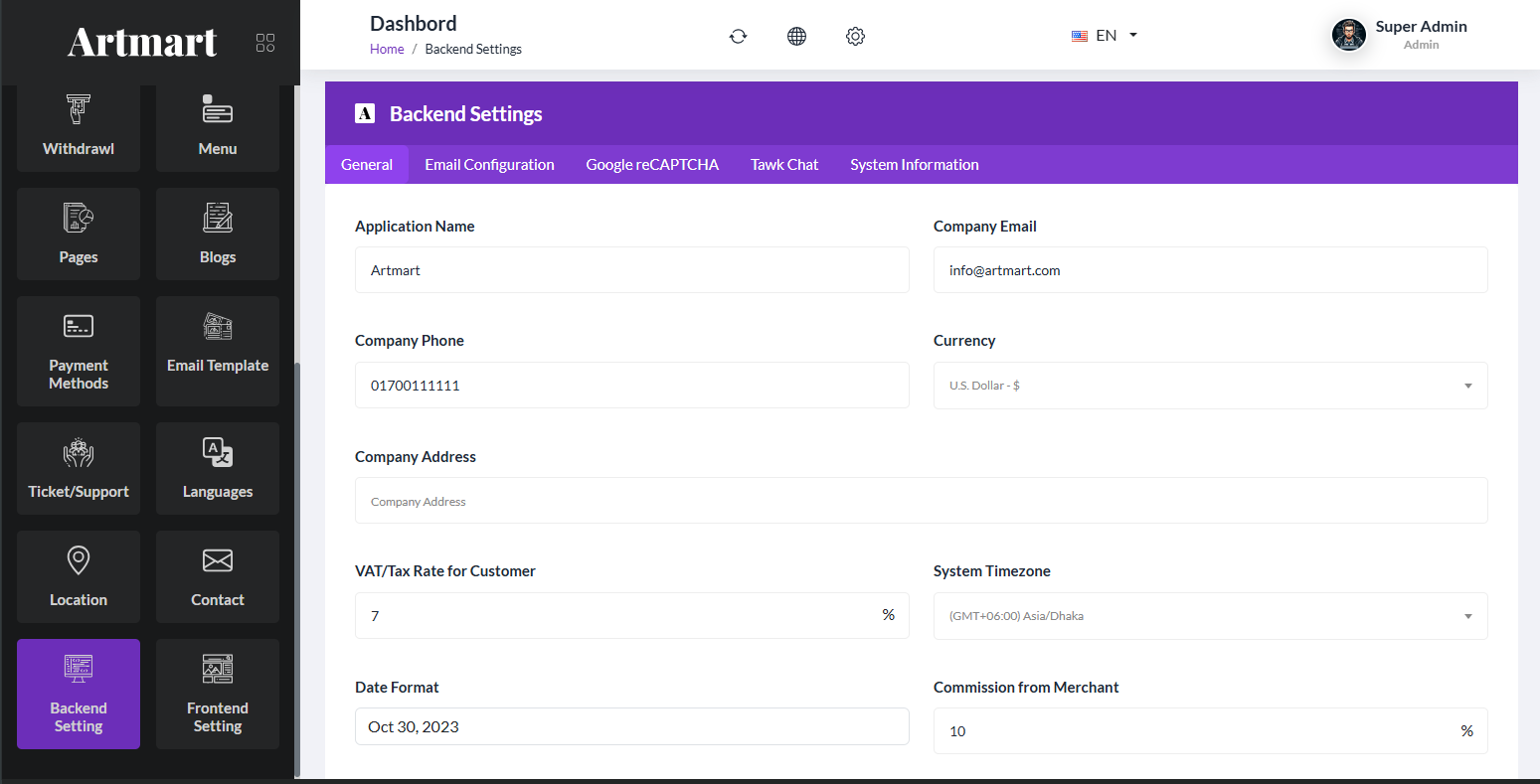
General Setting
Set up and customize the application name, company email, phone number, address, and currency preferences. Manage the VAT/Tax rate for customers and configure company-related billing details. Define the system timezone and preferred date format for all transactions and records. Enable or disable email verification for Art Gallery (Merchant) and Customer accounts. Upload and manage the Admin Panel logo, Invoice logo, and Authorized Signature for certificates and invoices.

Email Configuration
Support Gmail, Sendmail and other SMTP mail services. We suggest use SMTP to send mail.
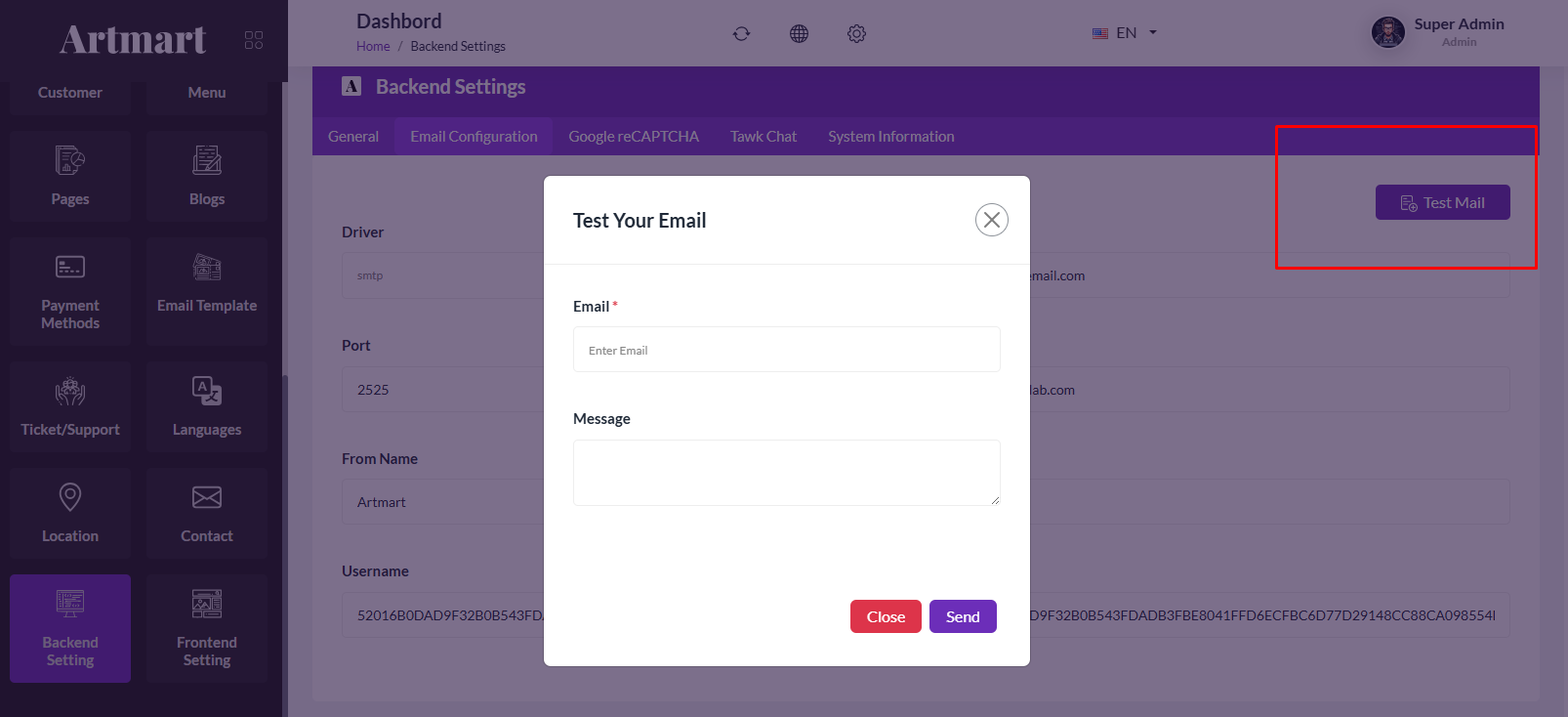
Make sure that you have saved settings (button Update settings on the bottom of page) before sending a test email.
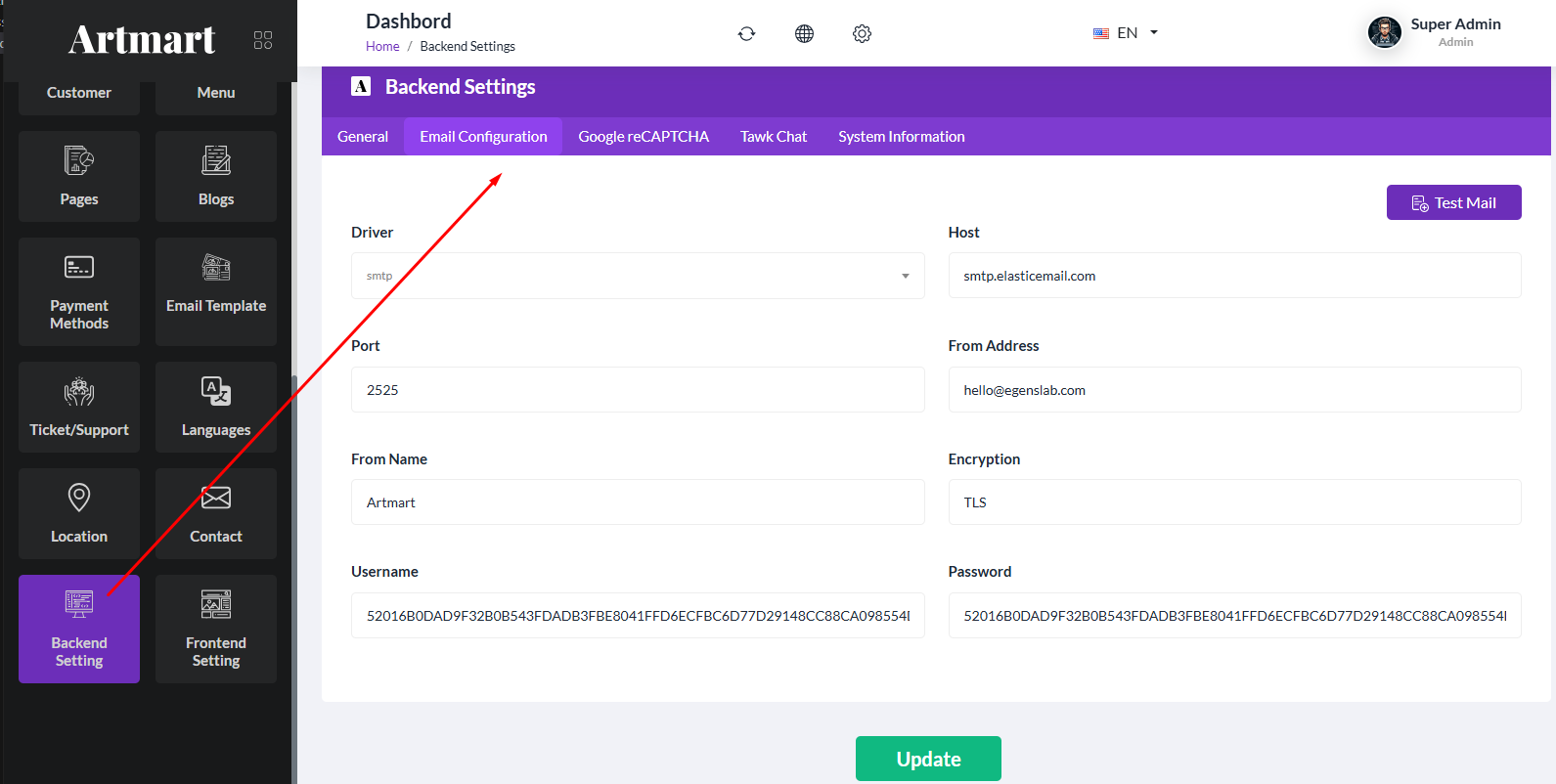
Mail Driver: SMTP
Mail Host: smtp.gmail.com
Mail Port: 587
Mail Encryption: tls
Mail Username: [your-gmail]
Mail Password: [password-app]
(docs: https://support.google.com/mail/answer/185833?hl=en-GB)
Google reCAPTCHA
You can setup and enable/dissable Google reCAPTCHA from here
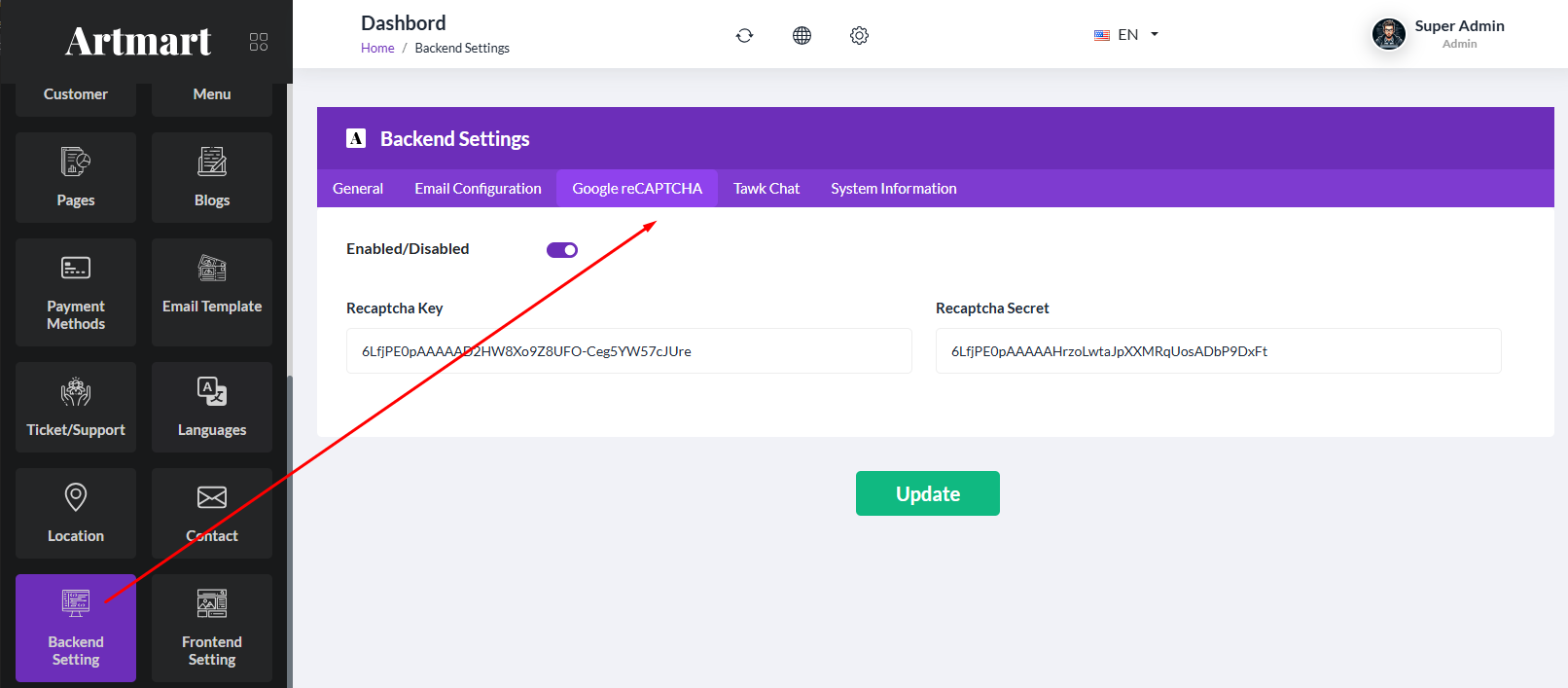
Enabled/Disabled
reCAPTCHA  Key
reCAPTCHA  Secret
(docs: https://developers.google.com/recaptcha)
Tawk Chat
You can setup and enable/dissable Tawk Chat from here
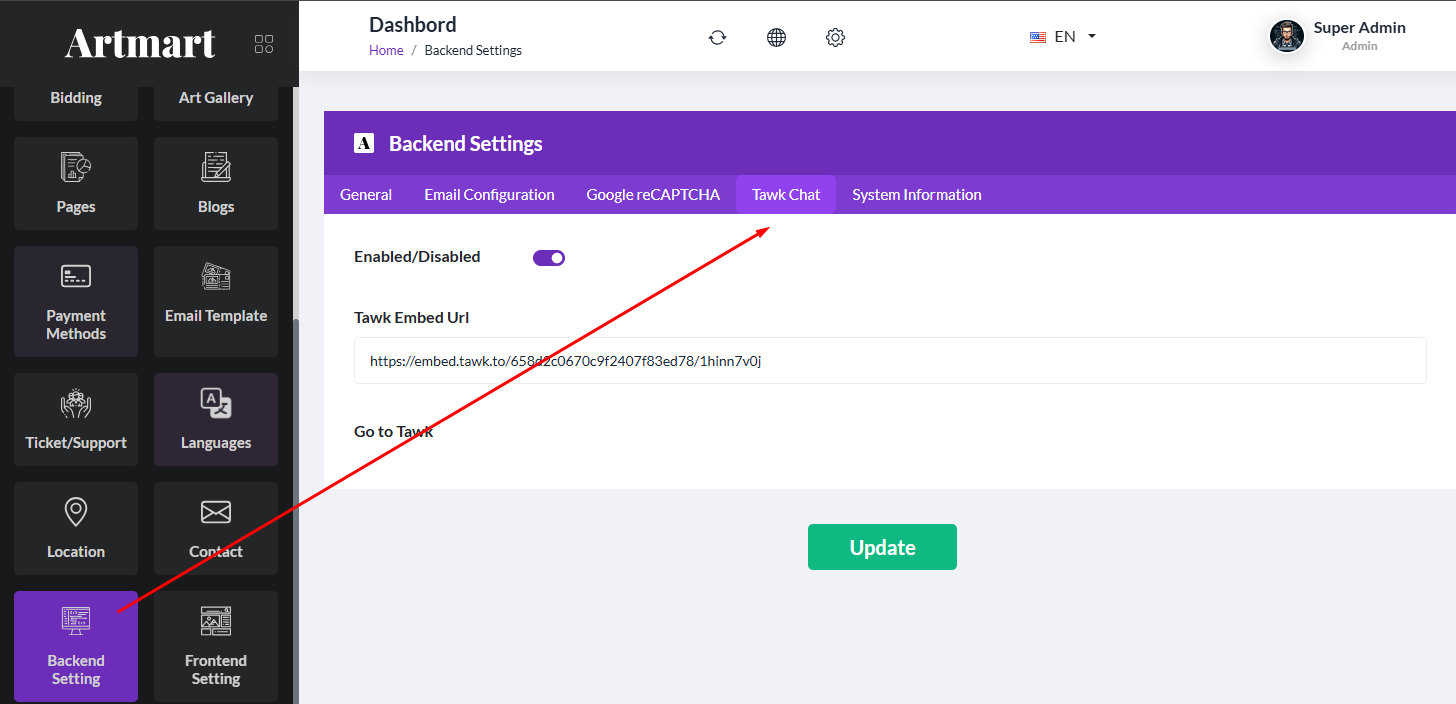
(docs: https://www.tawk.to/)
after Register Completed You see this script
<!--Start of Tawk.to Script-->
<script type="text/javascript">
var Tawk_API=Tawk_API||{}, Tawk_LoadStart=new Date();
(function(){
var s1=document.createElement("script"),s0=document.getElementsByTagName("script")[0];
s1.async=true;
s1.src='https://embed.tawk.to/fff';
s1.charset='UTF-8';
s1.setAttribute('crossorigin','*');
s0.parentNode.insertBefore(s1,s0);
})();
</script>
<!--End of Tawk.to Script-->
Note : Just You given embed Link as https://embed.tawk.to/fff
System Information
You can see system information here.